So, you have your trusty DualShock 4 controller, a masterpiece of gaming engineering, and you’re ready to dive into new worlds. But wait, how do you get it working with your console, PC, or even your phone? It might seem a little tricky at first, but connecting your PS4 controller is a straightforward process once you know the steps. Whether you’re setting up a new controller, syncing it to a friend’s console, or expanding your gaming horizons to other platforms, this guide has you covered.
We’ll walk you through everything you need to know about how to connect a PS4 controller. From the simple USB cable method to the magic of Bluetooth pairing, you’ll be ready for action in no time. This guide will cover connecting to your PlayStation 4, as well as to a PC, Mac, Android, and iOS device.
Key Takeaways
- Wired Connection (PS4): The easiest way to connect a new controller to a PS4 is with a micro-USB cable. This method pairs and charges the controller simultaneously.
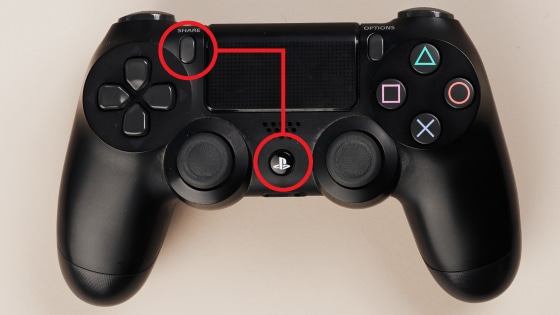
- Wireless Pairing (PS4): To connect wirelessly, you need to put the controller into pairing mode by holding the PS and Share buttons.
- PC Connectivity: You can connect a PS4 controller to a PC via USB or Bluetooth. For the best experience, using a program like DS4Windows is highly recommended to make your PC recognize it as an Xbox controller.
- Mobile Gaming: Modern iOS and Android devices natively support the DualShock 4 controller via Bluetooth, making it perfect for mobile gaming and services like PlayStation Remote Play.
- Troubleshooting: If you encounter issues, resetting the controller using the small button on the back is a common and effective solution.
How to Connect a PS4 Controller to Your PS4 Console
Connecting your DualShock 4 controller to your PlayStation 4 is the most common task you’ll perform. There are two primary methods: a simple wired connection and a wireless one.
The Easiest Method: Using a USB Cable
This is the go-to method for pairing a controller to a PS4 for the first time or if it’s having trouble connecting wirelessly. It’s foolproof and gets the job done in seconds.
Step-by-Step Guide:
- Turn On Your PS4: Start by powering on your PlayStation 4 console.
- Find a Micro-USB Cable: You’ll need a micro-USB to USB-A cable. This is the same type of cable that was commonly used to charge older Android phones. One should have come with your console.
- Connect the Controller: Plug the micro-USB end of the cable into the port on the top of your PS4 controller, located between the shoulder buttons.
- Connect to the Console: Plug the other end (the larger USB-A side) into one of the USB ports on the front of your PS4.
- Press the PS Button: Press the PlayStation button located in the center of the controller. The light bar on the controller will flash and then turn a solid color (usually blue for the first player). This indicates it has successfully paired with the console.
Once paired, you can unplug the USB cable and use the controller wirelessly. This process not only syncs the controller but also charges its internal battery.
How to Connect a PS4 Controller Wirelessly
If you want to connect a second controller, or if you’re connecting your controller to a friend’s console, the wireless method is your best bet. This process involves putting the controller into “pairing mode.”
Step-by-Step Guide:
- Navigate to the Bluetooth Menu: On your PS4, use an already connected controller to go to Settings > Devices > Bluetooth Devices. This screen will show all the Bluetooth devices currently registered with your console.
- Activate Pairing Mode: Pick up the controller you want to connect. Press and hold the PS button and the Share button at the same time. The Share button is the small button to the left of the touchpad.
- Wait for the Light Bar: Keep holding both buttons for about 5-7 seconds. The light bar on the back of the controller will start to flash rapidly with a white light. This means it is in pairing mode and is discoverable by your PS4.
- Select the Controller: On your PS4’s Bluetooth Devices screen, the new controller should appear in the list, usually as “DUALSHOCK 4.” Select it using your other controller.
- Confirm the Connection: The light bar on the newly connected controller will turn a solid color, and the PS4 will ask who is using the controller. Select a user profile, and you’re ready to play.
This method is essential when you don’t have a USB cable handy or when you’re visiting someone else and want to join in on the fun.
Expanding Your Gaming: Connecting to Other Devices
The DualShock 4 isn’t just for the PlayStation. Thanks to its use of standard Bluetooth technology, you can pair it with a wide range of other devices, including computers and smartphones. This can completely change how you play games on those platforms.
How to Connect a PS4 Controller to a PC
Playing PC games with a PS4 controller is a popular choice for those who prefer a gamepad over a keyboard and mouse. You can connect it via a USB cable or Bluetooth.
Connecting via USB
This is the simplest way to get started.
- Plug it In: Just like with the PS4, plug your micro-USB cable into the controller and the other end into a USB port on your PC.
- Driver Installation: Windows should automatically detect the controller and install some basic drivers. The light bar will turn on, indicating it’s connected.
However, many PC games are designed to work with Xbox controllers. While some platforms like Steam have excellent built-in support for the DualShock 4, other games might not recognize it correctly.
Connecting via Bluetooth
For a wireless experience on PC, follow these steps.
- Open Bluetooth Settings: On your Windows PC, go to Settings > Devices > Bluetooth & other devices.
- Add a Device: Click on “Add Bluetooth or other device” and then select “Bluetooth.”
- Activate Pairing Mode: Put your PS4 controller in pairing mode by holding the PS button and Share button until the light bar flashes rapidly.
- Select the Controller: Your PC will search for devices. “Wireless Controller” should appear in the list. Click on it to pair.
Pro Tip: Use DS4Windows for the Best Experience
To ensure your PS4 controller works flawlessly with nearly every PC game, a third-party tool called DS4Windows is highly recommended. This free program tricks your PC into thinking your DualShock 4 is an Xbox 360 controller, which has universal support in Windows games.
DS4Windows offers:
- Full compatibility with thousands of games.
- Customization options for button mapping, light bar color, and touchpad controls.
- The ability to create different profiles for different games.
Learning how to connect a PS4 controller to a PC with DS4Windows unlocks its full potential for PC gaming.
How to Connect a PS4 Controller to a Mac
Apple has made it incredibly easy to connect a PS4 controller to a Mac for gaming on Apple Arcade or other platforms.
- Open Bluetooth Preferences: On your Mac, go to the Apple menu > System Preferences > Bluetooth.
- Activate Pairing Mode on the Controller: Just as before, press and hold the PS and Share buttons on your DualShock 4 until the light bar begins to flash quickly.
- Connect in Bluetooth Menu: The controller will appear in your Mac’s Bluetooth device list as “DUALSHOCK 4 Wireless Controller.” Click the Connect button next to it.
Once connected, the light bar will change color, and you can start using it to play compatible games on your Mac.
How to Connect a PS4 Controller to a Mobile Device
Mobile gaming has become a powerhouse, and using a real controller can make the experience so much better. Both Android and iOS offer native support for the DualShock 4.
Connecting to an Android Device
- Open Bluetooth Settings: On your Android phone or tablet, pull down the notification shade and long-press the Bluetooth icon, or go to Settings > Connected devices > Pair new device.
- Enable Pairing Mode: Put your PS4 controller in pairing mode (hold PS + Share until the light flashes).
- Pair the Device: The “Wireless Controller” will appear in the list of available devices on your Android screen. Tap on it to pair.
Now you can play games from the Google Play Store, emulators, or game streaming services like Xbox Game Pass Cloud Gaming with your comfortable PS4 controller.
Connecting to an iPhone or iPad (iOS)
Apple added support for PS4 controllers starting with iOS 13, and the process is just as simple.
- Open Bluetooth Settings: Go to Settings > Bluetooth on your iPhone or iPad and make sure Bluetooth is turned on.
- Activate Controller Pairing Mode: Hold the PS and Share buttons on the controller until the light bar flashes.
- Select the Controller: “DUALSHOCK 4 Wireless Controller” will pop up under “Other Devices.” Tap on it to connect.
This is perfect for playing games on Apple Arcade or using the PlayStation Remote Play app to stream games directly from your PS4 or PS5 to your phone.
Troubleshooting Common Connection Issues
Sometimes, things just don’t work as expected. If you’re having trouble with your controller, here are some common problems and their solutions.
|
Problem |
Solution |
|---|---|
|
Controller won’t connect or pair |
Reset the controller. On the back of the controller, near the L2 button, there’s a tiny hole. Use a paperclip or SIM ejector tool to press and hold the button inside for 5 seconds. Then, try pairing it again with a USB cable. |
|
Controller connects but inputs are wrong |
This often happens on PC. Install and run DS4Windows to ensure proper input mapping for games that don’t natively support the DualShock 4. |
|
Connection keeps dropping (wireless) |
Reduce interference. Move closer to your console/device, and make sure there are no major obstructions. Other wireless devices like routers or microwaves can sometimes cause interference. Try re-pairing the controller. |
|
Controller won’t turn on |
The battery might be completely dead. Connect it to the PS4 or a wall charger with a USB cable for at least 30 minutes before trying to turn it on again. |
Why Won’t My PS4 Controller Connect?
If you’ve tried the basic steps and it still fails, there could be a few deeper reasons.
Too Many Devices Paired
A PS4 can only have a certain number of Bluetooth devices connected at once. Go to Settings > Devices > Bluetooth Devices and check the list. If there are old or unused controllers listed, you can “forget” them by selecting them, pressing the Options button, and choosing Forget Device. This can free up a slot for your new controller.
Faulty USB Cable or Port
When trying the wired connection method, the problem might not be the controller but the cable. Micro-USB cables are prone to wear and tear. Try a different cable to see if that solves the issue. Also, try plugging the cable into a different USB port on your console or PC. Some news outlets like britishnewz.co.uk have even reported on how common cable failure can be.
Firmware and Software Updates
Ensure your PS4 console, PC operating system, and mobile device are all updated to the latest software version. Updates often include improved hardware support and bug fixes that can resolve connectivity issues. For example, official DualShock 4 support on iOS was added in a specific update, so being on an older version would prevent it from working.
Conclusion
Mastering how to connect a PS4 controller to various devices opens up a world of gaming possibilities. The DualShock 4 is a versatile and ergonomic controller that feels great to use, whether you’re on your console or playing on the go. The simplest method is always the direct USB connection to your PS4, which both pairs and charges the device. For wireless freedom and connecting to PCs, Macs, and mobile phones, the Bluetooth pairing mode is your key to success.
If you run into trouble, remember the golden rule: reset the controller. This simple step solves a majority of connection problems. With this guide, you should be able to confidently connect your controller and get back to what matters most—playing your favorite games. As technology continues to integrate our devices, managing these connections becomes a basic skill, not unlike managing your personal information on a modern HR platform or a system like myhr.