
Nothing ruins a gaming session faster than your character moving on their own. You put the controller down to grab a snack, and suddenly your avatar is walking off a cliff. This annoying problem is known as “stick drift,” and it is a common headache for PlayStation 5 owners. It can make precise aiming impossible and navigating menus a total nightmare.
If you are frustrated and about to buy a new controller, stop right there! You might not need to spend $70 on a replacement just yet. In this guide, we will explore exactly how to fix stick drift ps5 using several methods ranging from quick cleaning tricks to more advanced repairs. We will break everything down into simple steps so you can get back to winning matches in no time.
Key Takeaways
- Stick drift causes: Dust, debris, and wear-and-tear are the main culprits.
- Simple fixes first: Resetting the controller and cleaning it often solves the issue.
- Software solutions: Updating your firmware is a crucial first step.
- Advanced options: Opening the controller is possible but voids the warranty.
- Warranty check: Always check if Sony will repair it for free before opening it yourself.
What Exactly Is Stick Drift on PS5?
Before we dive into the solutions, it helps to understand the problem. Stick drift happens when the DualSense controller registers movement even when you aren’t touching the thumbsticks. The sensors inside the analog stick module wear down over time, or debris gets stuck inside, causing false signals.
Think of it like a keyboard key that gets stuck. Even if you aren’t pressing it, the computer thinks you are. On a controller, this usually manifests as your camera panning to the left or your character slowly walking forward without your input. Understanding why this happens is the first step in learning how to fix stick drift ps5.
Common Signs of Stick Drift
- The camera spins uncontrollably in first-person shooters.
- Menu cursors scroll by themselves.
- Movement feels “heavy” or unresponsive in one direction.
- Your character jitters or twitches when standing still.
Method 1: The Soft Reset (Try This First!)
Sometimes, the problem isn’t hardware at all—it’s just a software glitch. Your controller and console might just need a fresh start to communicate correctly again. This is the easiest and safest method to try when figuring out how to fix stick drift ps5.
Disconnect and Reconnect Bluetooth
Often, wireless interference can cause jittery inputs that mimic stick drift.
- Go to your PS5 Settings.
- Select Accessories > General > Bluetooth Accessories.
- Find your controller on the list, select it, and choose Delete.
- Connect your controller to the PS5 using the USB cable and press the PS button to pair it again.
Cycle the Power
Sometimes a simple restart clears out temporary bugs. Turn off your PS5 completely (don’t use Rest Mode). Unplug it from the wall for a minute, then plug it back in and turn it on. It sounds too simple to work, but it often does!
Method 2: Resetting the DualSense Controller
If the software reset didn’t work, we need to reset the controller’s internal memory. The DualSense has a tiny reset button hidden on the back that restores it to factory settings. This is a critical step in learning how to fix stick drift ps5.
Step-by-Step Reset Instructions
- Turn off your PS5. It is best to do this while the console is powered down completely.
- Locate the hole. Look at the back of your controller. You will see a tiny hole next to the Sony logo.
- Get a tool. Use a paperclip, a SIM card ejector tool, or a toothpick.
- Press and hold. Gently insert the tool into the hole until you feel a button click. Hold it down for about 5 seconds.
- Reconnect. Plug the controller into the PS5 using the USB-C cable and press the PS button to re-sync it.
Test your game immediately. If the drift is gone, congratulations! If not, we need to move on to cleaning methods.
Method 3: Cleaning Around the Analog Sticks
The most common cause of drift is dirt, dust, and Cheeto crumbs getting lodged inside the mechanism. The analog sticks are sensitive, and even a speck of dust can confuse the sensors. Learning how to fix stick drift ps5 often just means learning how to clean properly.
Using Compressed Air
Compressed air (canned air) is your best friend here. It can blast debris out without you needing to open the controller.
- Turn off the controller.
- Push the analog stick to the side to expose the gap beneath the sphere.
- Spray short bursts of air into the gap. Do not hold the can upside down, or you will spray freezing liquid into your electronics.
- Rotate the stick while spraying to hit all angles.
- Repeat for the other stick if necessary.
Using Isopropyl Alcohol
For sticky residue, air won’t be enough. You need high-concentration Isopropyl alcohol (70% or higher).
- Dip a Q-tip (cotton swab) into the alcohol.
- Rub the Q-tip around the base of the analog stick ball.
- Move the stick around to let the alcohol work its way into the mechanism.
- Let it dry for 5-10 minutes before turning it on.
Warning: Use only a small amount of alcohol. You don’t want liquid pooling inside the circuit board.
Method 4: Adjusting Deadzones in Settings
If cleaning didn’t solve the issue completely, you might be able to hide the problem using software settings. Many modern games have a “Deadzone” setting. This defines how much you have to push the stick before the game registers movement. This is a clever workaround for how to fix stick drift ps5 without actually repairing anything.
How to Change Deadzones
- Open the Settings menu inside your specific game (e.g., Call of Duty, Fortnite, Apex Legends).
- Look for “Controller” or “Input” settings.
- Find the Stick Deadzone or Input Threshold option.
- Increase the number slightly (e.g., from 0.05 to 0.10).
- Test the game. Keep increasing it until the phantom movement stops.
Pros and Cons of Deadzones
|
Pros |
Cons |
|---|---|
|
Free and easy to do |
Makes aiming feel less responsive |
|
No tools required |
Doesn’t fix the root cause |
|
Works instantly |
Not all games support this setting |
Method 5: Updating the Controller Firmware
Sony frequently releases updates for the DualSense controller to fix bugs and improve performance. If you have ignored those “Update Available” notifications, you might be missing a fix. Ensuring your software is current is a vital part of how to fix stick drift ps5.
How to Update Manually
Usually, the update prompt appears automatically when you turn on the console. If you missed it:
- Go to Settings > Accessories.
- Select Controller (General).
- Choose DualSense Wireless Controller Device Software.
- If an update is available, follow the on-screen prompts.
Make sure your controller has enough battery or is plugged in during the update. A failed update can cause more issues than just drift.
Method 6: The “Rotate and Click” Technique
This is a physical manipulation technique that helps re-center the internal potentiometers (the sensors that read movement). It sounds strange, but many users on Reddit and forums swear by this method when discussing how to fix stick drift ps5.
The Technique
- Press down on both analog sticks (L3 and R3) and hold them for 10 seconds.
- While keeping them pressed, rotate both sticks clockwise slowly for 5 full circles.
- Rotate them counter-clockwise for 5 full circles.
- Release the sticks and press L3 and R3 one last time.
This helps to physically dislodge small particles and reset the sensor’s resting position. It is non-invasive and worth a try before taking drastic measures.
Method 7: Deep Cleaning (Advanced)
If you are comfortable with tools and DIY repairs, you can open the controller to clean the modules directly. Warning: This will void your warranty. Only do this if your warranty has expired or you are willing to take the risk. This is the “nuclear option” for how to fix stick drift ps5.
Tools You Need
- A small plastic pry tool (spudger).
- A small Phillips head screwdriver (usually PH000).
- Tweezers.
Steps to Open the DualSense
- Remove the black trim. Use the pry tool to gently pop off the black plastic trim covering the bottom of the controller handles.
- Remove L1/R1. Gently pry these buttons off to reveal screws underneath.
- Unscrew. Remove the four screws holding the casing together (two under the trim, two under L1/R1).
- Open the clips. Gently pry the two halves of the shell apart. Be careful of the ribbon cables!
- Access the sticks. Once inside, you can spray compressed air directly into the sensor modules (the green or orange boxes on the side of the sticks).
This method is risky if you aren’t careful, so we recommend watching a video tutorial alongside these steps.
Method 8: Replacing the Analog Stick Module
If cleaning fails, the sensor is likely physically broken or worn out. You have two options here: soldering or no soldering.
The No-Solder Option (DualSense Edge)
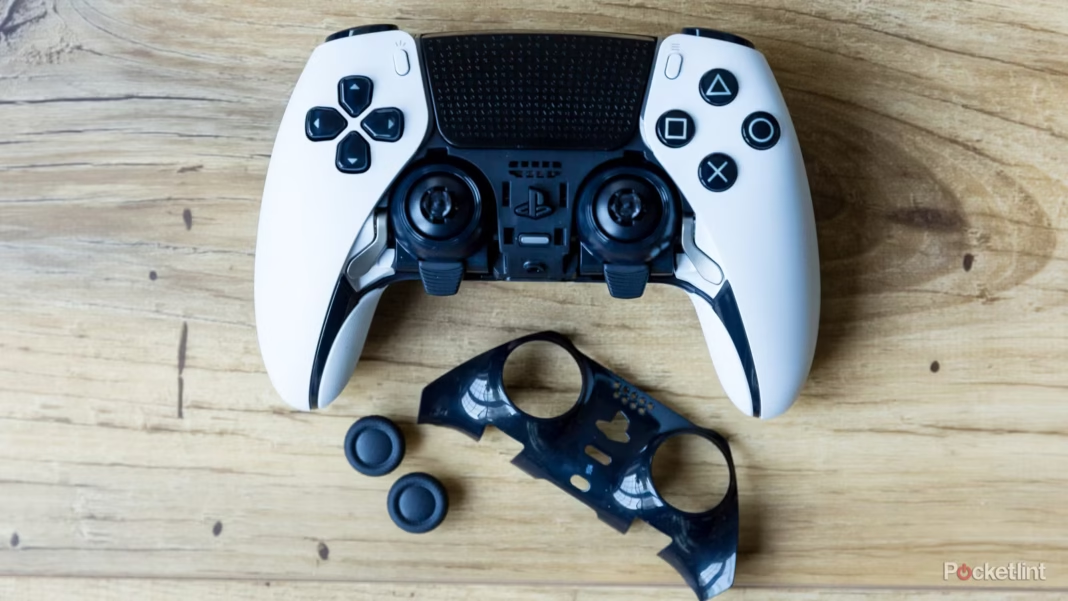
If you own the premium DualSense Edge controller, you are in luck. Sony designed this controller with replaceable stick modules. You simply slide a release switch, pull out the old stick module, and pop in a new one (sold separately for about $20). This is the easiest way to solve the problem permanently.
The Soldering Option (Standard DualSense)
For the standard controller, replacing the stick requires:
- Desoldering the old module from the motherboard.
- Soldering a new module in place.
This is difficult and requires specialized equipment. If you don’t know how to solder, we strongly advise against trying this yourself. You could easily melt the circuit board and ruin the controller forever.
When to Contact Sony Support
If you have tried the basic cleaning and reset methods and the drift persists, check your warranty. New PS5 controllers typically come with a 1-year manufacturer’s warranty. Sony is aware of this issue and will often repair or replace drifting controllers for free.
How to Check Your Warranty
- Find your proof of purchase (receipt or email confirmation).
- Locate the serial number on the back of the controller.
- Visit the official PlayStation Support website.
- Navigate to the “Hardware & Repairs” section.
- Follow the prompts to initiate a return.
Do not open your controller if it is still under warranty! Once you unscrew that case, Sony may refuse to help you. Using the warranty is the most cost-effective solution for how to fix stick drift ps5.
Preventing Stick Drift in the Future
Once you have fixed the issue (or bought a new controller), you want to make sure it doesn’t happen again. Prevention is better than cure. Here are some tips to extend the life of your hardware.
Keep It Clean
Wash your hands before gaming! Grease and food crumbs are the enemies of electronics. The oil from your skin attracts dust, which eventually works its way into the sensors.
Store Properly
Don’t leave your controller face-down or in a drawer where other heavy items sit on top of it. Constant pressure on the analog sticks weakens the springs and sensors over time. Store it in a dust-free environment, like a drawer or a case.
Be Gentle
We all get intense during close matches, but try not to mash the sticks too hard. Excessive force wears down the internal plastic components much faster.
Frequently Asked Questions (FAQ)
Here are some common questions gamers have when learning how to fix stick drift ps5.
Q: Can software updates really fix stick drift?
A: Yes, sometimes. While they can’t fix physical damage, updates can calibrate how the software interprets the signals, potentially eliminating minor drift.
Q: Does opening my controller void the warranty?
A: Generally, yes. While “Right to Repair” laws are changing things, companies can make it difficult to claim a warranty if there are signs of tampering. It is safer to claim the warranty first.
Q: How long does a DualSense controller usually last?
A: It varies heavily based on usage. Some report drift after 400 hours of play, while others last for years. Heavy users playing FPS games tend to see issues sooner.
Q: Is WD-40 safe for controllers?
A: NO! Do not use standard WD-40. It leaves a greasy residue that attracts more dirt. Only use “WD-40 Specialist Contact Cleaner” which is designed for electronics, or standard Isopropyl alcohol.
Why Does Stick Drift Happen?
It might feel like bad luck, but there is actually science behind why this happens. The joystick uses components called potentiometers. These use wiper blades that slide along a resistive track to tell the PS5 where your thumb is.
Over time, two things happen:
- Friction wear: The wiper scrubs the track, physically wearing it away.
- Carbon buildup: The dust created from that friction stays inside the sensor, confusing the electrical reading.
This is why cleaning works so well—it removes that conductive dust. However, if the track is physically worn down, cleaning won’t help, and the part needs replacement. Understanding the mechanics helps you understand how to fix stick drift ps5 effectively.
Is It Worth Buying a New Controller?
Sometimes, time is money. If you have spent hours trying to clean, reset, and calibrate your controller with no luck, it might be time to move on.
- Buy New: A standard DualSense costs around $70-$75.
- Upgrade: The DualSense Edge costs $200 but allows you to swap out sticks easily for $20 in the future.
- Repair: Professional repair shops might charge $30-$50, which is close to the price of a new one.
If your budget allows, the DualSense Edge is a great investment for hardcore gamers because it essentially solves the drift anxiety forever.
Summary of Solutions
To recap, here is the order of operations you should follow when figuring out how to fix stick drift ps5:
- Reset Bluetooth: Rule out interference.
- Hard Reset: Use the button on the back of the controller.
- Clean: Use compressed air and alcohol to remove debris.
- Update: Ensure firmware is current.
- Adjust Settings: Increase deadzones in games.
- Warranty: Send it to Sony if eligible.
- Repair/Replace: Open it up or buy a new one.
Following this checklist ensures you don’t waste money replacing a controller that just needed a quick cleaning.
Conclusion
Dealing with hardware issues is never fun, but hopefully, this guide has saved you some stress and cash. Stick drift is an unfortunate reality of modern gaming, caused by the delicate nature of the sensors used in almost all controllers today. However, knowing how to fix stick drift ps5 empowers you to maintain your gear and extend its lifespan.
Start with the simple fixes like compressed air and resetting the device. These work more often than you might think. Be patient, be gentle with your electronics, and check your warranty status before grabbing a screwdriver. With a little effort, you can stop the drift and get your aim back on point.
For more information on the technology behind electronics and sensors, you can always check out resources like the page on Potentiometers. Happy gaming!